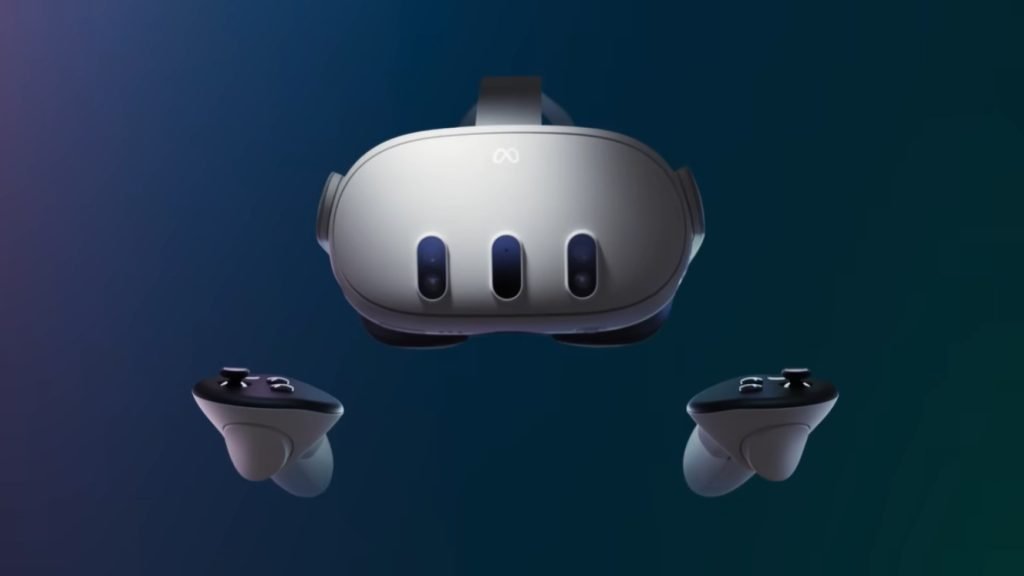
Navigating the digital landscape of virtual reality can feel a bit like stepping into a new universe—exciting, vast, and sometimes, a little disorienting. When you pick up a Meta Quest 3, you're not just getting a headset; you're gaining access to "The Meta Quest 3 Content Library and Ecosystem," a sprawling collection of games, apps, and experiences that defines your entire VR journey. But where exactly do you find all this incredible content, and how do you make sense of the different ways to access it?
Think of your Quest 3 as a gateway, but that gateway has multiple doors, each leading to a different facet of its extensive content library. This guide will walk you through every corner of that ecosystem, from the official Meta Quest Store to the thriving independent scenes, ensuring you're empowered to explore, discover, and truly master your virtual world.
At a Glance: Your Quest 3 Content Essentials
- No Website Library: You cannot access your Meta Quest content library directly from
Meta.comon a web browser. It's a common misconception! - Headset is Key: Your primary access point is the Meta Quest 3 headset itself, through the "Apps" or "Store" sections.
- Mobile Companion: The Meta Quest mobile app (for iOS/Android) is your remote control for browsing, buying, and installing content.
- Beyond the Official Store: App Lab and SideQuest offer a treasure trove of experimental and indie titles not found in the main store.
- PC VR Bridge: Link Cable or Air Link allows your Quest 3 to tap into PC VR libraries like SteamVR and the Oculus PC app.
- Mixed Reality Focus: The Quest 3 leans heavily into Mixed Reality (MR), meaning content often blurs the lines between virtual and your physical world.
Your Portal to VR Worlds: Understanding the Quest 3 Library
When we talk about the Meta Quest 3 content library, we're not just referring to a single, monolithic list of apps. It's a dynamic collection spanning multiple platforms and access points, each with its own quirks and advantages. For newcomers, the biggest hurdle often isn't finding content, but knowing where to look for your content specifically.
Where You Won't Find It (And Why That's Okay)
Let's clear up a common point of confusion right away, as highlighted by many users: the "Library" section is not available on the Meta.com website. If you log into your Meta account on a desktop browser hoping to manage your purchased games or browse your installed apps, you'll be out of luck. This can feel counterintuitive in an age where every digital service offers a web portal.
The reason for this boils down to Meta's ecosystem design. They've opted for a more direct, device-centric approach. Your library, by and large, lives either directly on your headset or within the dedicated Meta Quest mobile app. Understanding this fundamental distinction is the first step in smoothly navigating your content.
Accessing Your Digital Universe: On the Headset
Your Meta Quest 3 headset isn't just a display; it's a fully functional computing platform where your content library truly comes alive. This is where you'll spend most of your time browsing, installing, and, of course, playing.
The "Apps" Section: Your Home Base
Once you don your Quest 3, hit the Meta button on your right controller to pull up the universal menu. Here, you'll find an "Apps" icon (often represented by a grid of nine dots). Clicking this takes you to your primary content library:
- All Apps: This is the default view, showing every app you own, whether it's installed, uninstalled, or even if it's an App Lab title. You'll see icons for games, experiences, social apps, and utilities.
- Filters and Sorting: Look for options to filter your apps by "Installed," "Uninstalled," "Recently Used," or even by category. This is crucial for managing a growing library.
- Installation & Updates: To install an uninstalled app, simply click on its icon. If an app has an update, you'll usually see an indicator, and you can initiate the update from its detail page.
- Pinning Favorites: For quick access, you can "pin" frequently used apps to your universal menu bar or your home environment. Just hover over an app, click the three-dot menu, and select "Pin."
This in-headset library isn't just about what you already own. It's also your direct conduit to the official Meta Quest Store. From within VR, you can browse new releases, check out sales, read reviews, and make purchases directly, all without ever taking off your headset. It’s a seamless experience designed to keep you immersed. To really dive deep, you can discover new Meta Quest 3 apps directly from the store tab in your headset.
Your Mobile Command Center: The Meta Quest App
While the headset is for direct immersion, the Meta Quest mobile app (available for iOS and Android) acts as your indispensable remote control and content hub outside of VR. It’s an incredibly powerful tool for managing your Quest 3 ecosystem.
Browsing, Buying, and Installing Remotely
The mobile app is arguably the most convenient way to browse the Meta Quest Store. Here's why:
- Familiar Interface: It feels like any other mobile app store, making discovery intuitive. You can scroll through categories, search for specific titles, and view screenshots and trailers.
- Purchase Power: You can buy games and apps directly from the mobile app using your linked payment method. Purchases sync instantly to your Meta account.
- Remote Installation: This is a killer feature. Once you've bought an app on your phone, you can initiate its download and installation to your Quest 3 headset remotely, even if your headset is in another room or on standby. Just make sure your headset is connected to Wi-Fi.
- Wishlist and Notifications: Keep track of games you're interested in by adding them to your wishlist. The app can also send you notifications for sales or updates on your favorite titles.
Managing Storage and Downloads
Beyond purchases, the Meta Quest app provides vital tools for headset management:
- Storage Overview: Get a clear picture of how much storage space is left on your Quest 3 and see which apps are taking up the most room.
- Uninstall Apps: You can uninstall apps directly from your phone, freeing up space without needing to put on the headset.
- Download Queue: Monitor the progress of ongoing downloads and installations.
- Device Settings: Access various headset settings, like Wi-Fi networks, guardian settings, and even casting options.
The Meta Quest app also lets you pair new controllers, adjust guardian settings, and even cast your VR view to a connected device, making it a truly comprehensive companion. It's an excellent way to prepare your headset for a play session or optimize your Quest experience with accessories by looking up compatible gear.
Beyond the Official Store: Expanding Your Horizons
While the official Meta Quest Store offers a fantastic collection of curated experiences, the Meta Quest ecosystem isn't limited to it. There are vibrant alternative channels that open up a world of experimental, indie, and community-driven content.
App Lab: The "Unofficial Official" Store
App Lab is Meta's platform for developers to distribute apps that don't quite meet the strict curation standards of the main Quest Store, or perhaps are still in early access, experimental, or niche. Think of it as a stepping stone or an incubator for innovative VR content.
- How it Works: App Lab apps aren't listed directly in the main Quest Store. To find them, you usually need a direct link from the developer, or you can browse dedicated App Lab discovery websites. Once you click an App Lab link, you're taken to a Meta Quest Store page where you can purchase and download it just like any regular app.
- Benefits: This allows for more creative freedom, faster iteration, and a wider variety of content, including hidden gems that might become future store hits.
- Considerations: Quality can vary more widely than in the main store, as these apps undergo less stringent review. Always check reviews and developer reputation.
- Seamless Integration: Once installed, App Lab titles appear in your headset's "Apps" library alongside your official purchases, making management easy. If you're keen on finding unique experiences, exploring the Meta Quest App Lab is a must.
SideQuest: The True Indie Frontier
SideQuest is a third-party platform that acts as a gateway for sideloading applications onto your Meta Quest 3. This is where you'll find the most experimental, cutting-edge, and truly independent VR content, including alpha builds, mods, and even ports of classic games.
- What is Sideloading? Sideloading means installing apps onto your Quest 3 directly from your computer, bypassing Meta's official stores. It requires enabling Developer Mode on your headset and connecting it to a PC.
- The SideQuest Advantage:
- Unfiltered Content: A huge library of games, demos, utilities, and experimental apps that wouldn't make it to App Lab or the main store.
- Mods: Access to mods for existing Quest games, enhancing gameplay or adding new features.
- PC VR Streaming: SideQuest can also facilitate PC VR streaming solutions for your Quest, though official Meta solutions are often preferred for ease of use.
- How to Get Started (Briefly):
- Enable Developer Mode on your Quest 3 via the Meta Quest app.
- Install the SideQuest desktop app on your PC.
- Connect your Quest 3 to your PC via USB-C.
- Browse and install apps from the SideQuest store directly to your headset.
- Important Note: Sideloading comes with some risks. Always download content from trusted developers and be aware that these apps are not officially supported by Meta.
PC VR Link (Air Link/Link Cable): Bridging to SteamVR and Rift Titles
Your Meta Quest 3 isn't just a standalone device; it's also a powerful PC VR headset. Through Meta Link (using a USB-C cable) or Air Link (wireless streaming), you can connect your Quest 3 to a VR-ready PC and access a massive additional library of content.
- Meta PC App (Oculus Rift Store): Once connected to your PC, your Quest 3 can act as an Oculus Rift headset, giving you access to the entire library of games available on the Meta PC app. Many of these titles are visually more complex and graphically demanding than their standalone Quest counterparts.
- SteamVR: This is where the PC VR content truly explodes. By connecting your Quest 3 to your PC, you can play virtually any game available on SteamVR, including AAA titles like Half-Life: Alyx, Bonelab, and countless indie experiences. This dramatically expands your content options beyond what's natively available on the Quest headset.
- Setup: Both Link Cable and Air Link require a stable PC connection and, for Air Link, a robust Wi-Fi 6 router. The setup process involves enabling Link/Air Link from your Quest's Quick Settings and confirming the connection on your PC.
- Benefits: Unparalleled graphics fidelity (if your PC can handle it), access to an even broader content library, and often more complex, longer-form gaming experiences. This is a game-changer if you're serious about VR gaming, and you can connect your Quest 3 to PC VR for incredible experiences.
Navigating the Ecosystem: Content Types and Purchases
The Meta Quest 3's library isn't just about games. It encompasses a diverse range of software designed to entertain, educate, and even help you be productive in new ways.
Games, Experiences, Social Apps, and Productivity Tools
- Games: From action-packed shooters to serene puzzle games, fitness apps disguised as games, and narrative-driven adventures. This is often the primary draw for many Quest users.
- Experiences: Shorter, often passive, virtual tours, educational documentaries, concert experiences, or interactive stories. These can be incredibly immersive.
- Social Apps: Platforms like VRChat, Horizon Worlds, and Rec Room allow you to connect with friends and strangers in virtual spaces, attend events, and play mini-games.
- Productivity Tools: Apps for virtual desktops (Immersed, Virtual Desktop), 3D modeling, drawing, or even meditation. These leverage the Quest 3's capabilities beyond pure entertainment.
Purchase Models
Most content on the Meta Quest Store is a one-time purchase. However, the ecosystem also incorporates:
- Subscriptions: Services like Meta Quest+ offer a monthly selection of games, while fitness apps often have their own subscription models.
- In-App Purchases (IAPs): Common in free-to-play games or social apps, offering cosmetic items, virtual currency, or unlockable content.
- Bundles & Sales: Meta frequently offers game bundles and seasonal sales, which are great opportunities to expand your library at a discount. Always check the Meta Quest app for the latest deals.
Account Portability and Shared Content
Your Meta account is the key to your library. Purchases are tied to your account, not a specific headset. This means if you upgrade from a Quest 2 to a Quest 3, your entire purchased library automatically carries over.
- App Sharing: The Quest platform allows for "App Sharing" with up to three other accounts on a single headset. This means if you buy a game, other users on your headset can play it without buying their own copy. This is excellent for families or households with multiple users. However, only the primary account can have App Sharing enabled, and not all apps support it (though most do).
- Cloud Saves: Many games support cloud saves, meaning your progress is automatically backed up and accessible if you switch headsets or reinstall a game. This is a crucial, often overlooked feature. When looking for new titles, essential tips for VR gaming often highlight checking for cloud save support.
Managing Your Quest 3's Digital Footprint
With gigabytes of games and apps, effective storage management becomes essential, especially with the Quest 3's fixed internal storage.
Storage Management: Uninstalling and Archiving
- In-Headset: From your "Apps" library, hover over an app, click the three-dot menu, and select "Uninstall." You can also go to Settings > Storage to see a breakdown and manage apps.
- Meta Quest App: As mentioned, the mobile app provides an excellent interface for viewing storage usage and uninstalling apps remotely.
- Archiving vs. Uninstalling: When you uninstall an app, it's removed from your headset but remains in your library as an owned title. You can reinstall it anytime. Currently, Meta doesn't offer a true "archive" function that frees up local space while keeping the app's data readily accessible, but the remote install feature largely covers this need.
Updates and Troubleshooting Common Library Issues
- Automatic Updates: Most Quest apps are set to update automatically when your headset is on standby and connected to Wi-Fi. You can manually check for updates via the app's detail page in the headset or mobile app.
- "Missing" Apps: If an app seems to disappear, first check your "Apps" library with the "All Apps" filter applied. Sometimes App Lab titles might get buried. If it's truly gone, ensure you're logged into the correct Meta account.
- Download Failures: Check your Wi-Fi connection. If persistent, try restarting your headset or clearing the cache (if options are available in settings). Sometimes a simple reboot is all it takes.
The Road Ahead: Meta's Vision for Content
Meta is continually evolving its content ecosystem. The Quest 3, with its advanced mixed reality capabilities, points to a future where VR and AR content blend seamlessly with your physical environment.
- Mixed Reality Experiences: Expect a growing emphasis on apps that leverage the Quest 3's color passthrough and depth sensors, blurring the lines between the virtual and real world. This will spawn entirely new categories of interactive content.
- Developer Support: Meta is heavily investing in developer tools and programs, which means a steady influx of new and innovative content is always in the pipeline.
- Social & Interconnected Experiences: The push for Horizon Worlds and other social platforms suggests a future where your content library isn't just about solo play but shared, interactive experiences with others.
The Big Picture: Is the Quest 3 Ecosystem Right for You?
Ultimately, the Meta Quest 3 content library and its surrounding ecosystem are incredibly robust and diverse. From official store titles to experimental indie projects and the vast world of PC VR, there's truly something for everyone. The beauty lies in its accessibility—you can dive deep into complex VR experiences or simply pick up and play quick, casual games, all from a single device.
Understanding how to access and manage this content, whether through your headset, the mobile app, or by venturing into App Lab and SideQuest, is key to unlocking the full potential of your Quest 3. It's an investment in a dynamic, ever-growing platform that promises endless hours of exploration and entertainment. If you're weighing your options, consider if the Meta Quest 3 is worth it for your personal VR journey.
Final Thoughts: Embrace the Infinite Possibilities
Don't let the initial learning curve of a new ecosystem deter you. The Meta Quest 3 provides unparalleled access to virtual and mixed reality content, but it requires a little knowledge to navigate effectively. Keep your mobile app handy, explore beyond the main store, and remember that your Quest 3 is designed to be a flexible portal to countless digital worlds. Dive in, experiment, and most importantly, enjoy the incredible experiences waiting for you.